
A one-star review is a buying signal with a timestamp. Most people prospecting local businesses never look at one, which is why Google Maps reviews are the most underused input in local business outreach.
What you will have by the end of this guide: a filtered list of local businesses pulled from Google Maps, the decision-maker's email address for each one, every address verified before send, and a personalized opening line written from that specific business's reviews. Four steps, no manual research, and the whole thing re-runs on a schedule.
Why Local Business Data Is Still Underworked
Everyone is prospecting the same tech companies from the same LinkedIn exports. Local businesses sit outside that fight, for a reason that works in your favor: they are harder to compile.
Owners often have no LinkedIn presence worth scraping. Contact details live inside a Google Business listing, not on a company website. Email addresses are frequently not displayed at all. Standard B2B databases index these businesses poorly because the businesses never fed them anything.
That difficulty is exactly what makes them worth working:
Less inbox competition. Your message is not the fourth one this week from someone who bought the same list.
The decision-maker is the person you reach. No buying committee, no procurement cycle. The owner reads the email and can say yes on the spot.
The pain is visible in public. Reviews tell you what is going wrong in the business right now, in the customer's own words. You will not find that on a LinkedIn profile.
If your ideal customer profile includes restaurants, clinics, gyms, salons, contractors, or any other brick-and-mortar operator, that combination is unusually favorable.
Why Google Maps Reviews are great for Outreach
Before the mechanics of finding emails and writing messages, here is why Google Maps reviews are the right signal to build on.
Why reviews matter for local businesses:
Social proof: Reviews build trust and credibility
Visibility: Higher ratings improve search rankings
Feedback loop: Reviews provide valuable insights for improvement
How reviews can inform your outreach strategy:
Identify pain points: Negative reviews highlight areas where businesses need help
Spot trends: Recurring themes in reviews reveal systemic issues
Gauge sentiment: Overall rating gives a quick snapshot of business health
The untapped potential of negative reviews: While many businesses dread negative reviews, they're actually a golden opportunity for outreach. Why? Because they:
Reveal urgent needs
Show where businesses are struggling
Provide a clear value proposition for your services
By focusing on businesses with reviews that highlight significant areas for improvement you're targeting those most likely to need your help, and be receptive to your outreach.
Step-by-Step Guide to Finding Local Business Email Addresses
Now that we understand the value of review data, let's walk through the process of finding local business email addresses.
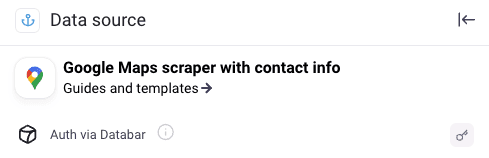
Leverage the Google Maps scraper with contact info: Start by using Databars’ Google Maps scraper with contact info to gather data on local businesses. This tool will collect valuable information such as:
Business name
Address
Phone number
Email
Review ratings
Review text
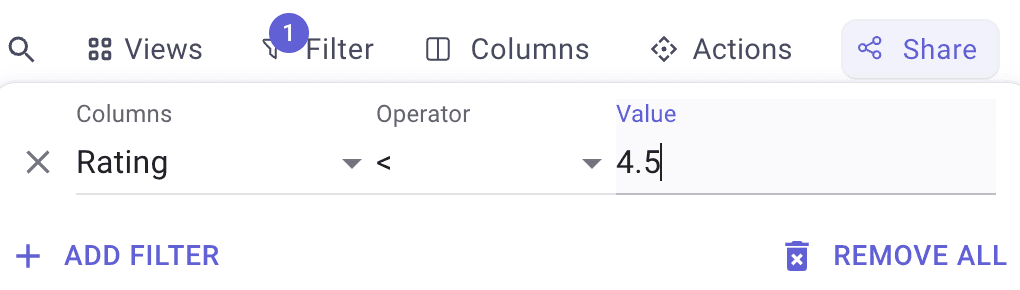
Filter reviews to identify opportunities: For example, focus on businesses with ratings under 4.5 stars. These are the ones most likely to need your services and be open to outreach.
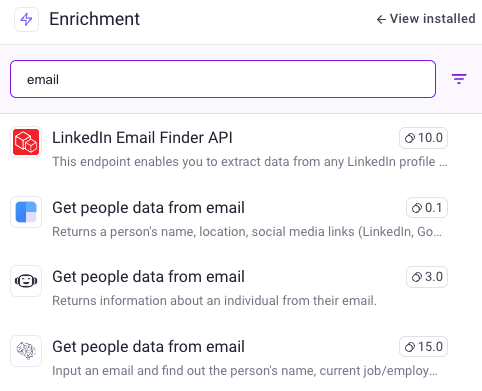
Enrich data by selecting suitable APIs to fetch additional information about the business or employees.
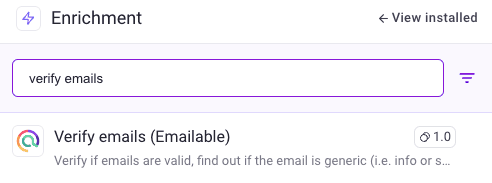
Validate email addresses for accuracy: Before launching your outreach campaign, it's crucial to validate the email addresses you've collected. This step helps:
Reduce bounce rates
Improve deliverability
Maintain a good sender reputation
By following these steps, you'll build a high-quality list of local businesses primed for personalized outreach.
The Exact Enrichments to Use, and What They Cost
The steps above describe the shape of the workflow. Here are the specific enrichments that run it, checked against the Databar catalog in September 2026. Costs are in credits, not dollars.
Step | Enrichment | Source | Credits |
|---|---|---|---|
Build the list | Search Google Maps locations | Outscraper | 0.4 |
Pull the reviews | Google Maps reviews for location | Outscraper | 0.4 |
Find contacts | Find leads & contacts from website | Outscraper | 1.5 |
Find contacts (alternative) | Find emails by company and department | Hunter.io | 6 |
Verify | Verify emails with Emailable | Emailable | 1 |
Write the first line | Anthropic custom prompt | Anthropic | 1 |
Step 1 in Detail: Search Google Maps Locations
The query field takes anything you would type into Google Maps: dentists, Austin TX, or restaurants, Brooklyn 11203, or a Maps URL or place id if you already have one. Set the limit for how many places to return. It accepts up to 500, but 200 or fewer runs faster and more reliably.
What comes back per business: name, full address, phone, website, description, category, rating, review count, business status, and the Maps link. The rating and review count are the two columns you will filter on, and the website is what the contact step needs.
Run one search term per row and you can build a whole territory in a single pass: the same service across twelve neighborhoods, or twelve service types across one city.
Step 2 in Detail: Filter Before You Spend Anything
This is the step that decides whether the campaign is profitable. Contact enrichment and verification cost credits per row; the Maps search barely costs anything. So cut the list first.
Filter on rating (under 4.5 stars if you sell an improvement, above 4.5 if you sell to businesses already doing well), on review count to exclude places with three reviews and no real operation behind them, and on business status to drop anything permanently closed. Rows you filter out never reach the paid enrichments.
Step 3 in Detail: Reviews as the Personalization Layer
Run Google Maps reviews for location on the businesses that survive the filter. Set the review limit, sort by lowest_rating or newest depending on the angle, and turn on the option to exclude reviews with no written text, since a bare star rating gives an AI prompt nothing to work with.
You get review text, rating, date, author, and the owner's reply. The owner's reply is the underrated field. A business that answers its bad reviews cares about the problem, which is a much stronger buying signal than the bad review on its own.
Step 4 in Detail: Contacts, Then Verification
Google Maps rarely exposes an email address, so the contact step works from the website column. Find leads & contacts from website returns emails, phone numbers, socials and decision-makers from a domain at 1.5 credits. If you want to target by seniority instead, Find emails by company and department takes the company URL plus a department and a seniority level such as executive.
Then verify. Always verify. Local business domains are full of forwarding addresses and long-dead mailboxes, and a bounce on a small domain is a bigger deliverability problem than a bounce on a large one. Verify emails with Emailable costs 1 credit per address and also tells you whether the address is a generic role account like info@ or hello@, which changes how you write the message.
If you would rather run the whole contact step as a cascade across several providers instead of one, that is what waterfall enrichment is for: providers are tried in order, the run stops at the first usable result, and verification can run as part of the chain.
If the list-building half is where you need more detail, two guides go deeper: how to generate leads from Google Maps covers the no-code path end to end, and scraping Google Maps and finding business owners with Claude Code covers driving the same enrichments from an AI agent. For a worked example of what review data looks like at scale, we ran it across a continent in the best European city for McDonald's according to Google Maps reviews.
Crafting Personalized Messages Based on Reviews
We've successfully gathered email addresses, but how do we turn them into meaningful connections? Let's explore how to leverage review data for outreach that truly hits the mark.
Personalization isn't just about using someone's name. It's about demonstrating a deep understanding of their unique challenges and offering tailored solutions. Review data provides invaluable context, allowing you to craft messages that resonate on a personal level.
Using AI for Hyper-Relevant Outreach
With Databar's AI-powered tools, we can quickly identify the most relevant reviews that align with your offering. Here's how to maximize this capability:
Filter for High-Value Opportunities: Use AI to prioritize reviews indicating a need for optimization.
Create Targeted Templates: Develop a set of customizable templates based on common themes in reviews. For example:
Template for businesses struggling with customer service efficiency
Template for companies facing cleanliness-related complaints
Template for organizations dealing with product quality issues
Pro Tip: Always infuse these templates with specific details from individual reviews to create truly personalized outreach that stands out in crowded inboxes.
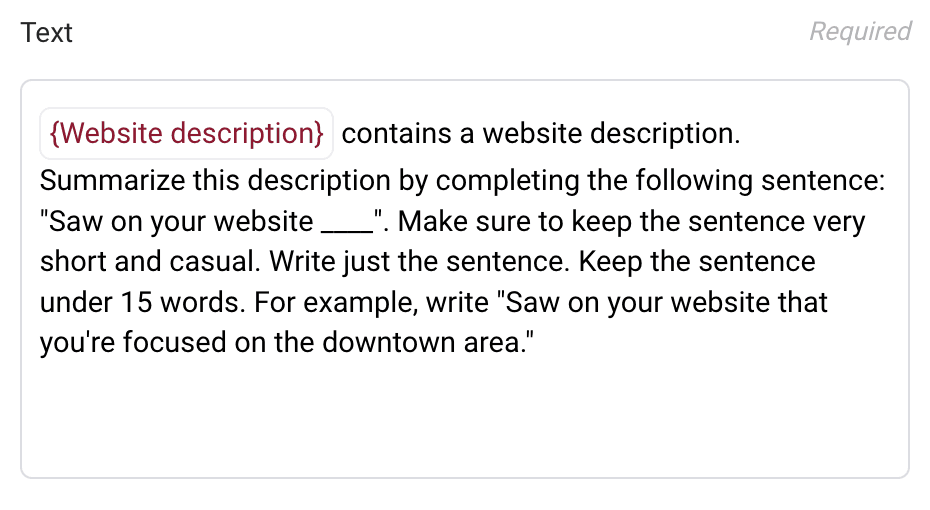
A First-Line Prompt That Holds Up Across a Whole List
Add an AI column using the Anthropic custom prompt enrichment (1 credit per row; OpenAI and Gemini columns work the same way) and point it at your review and description columns. The prompt that produces usable output looks like this:
The SKIP instruction is the part people leave out and then regret. Without it the model invents a compliment for the business with four reviews that all say "good", and the invented detail is the one that gets you called out in a reply.
What good output looks like:
For a bakery: "Bringing French pastry technique to downtown since 1995 is a long run."
For a gym: "Your senior fitness programming keeps coming up in the reviews."
For a restaurant: "Farm-to-table Mexican was overdue in Portland, and the reviews agree."
Then read a sample. Twenty rows, by eye, before anything sends. AI-written first lines fail in a specific way: they are fluent, plausible, and occasionally about a business that does not exist. One wrong detail in the opening line undoes the credibility the whole approach is built on. If you want more angles on opening lines, first lines built from a prospect's latest LinkedIn post uses the same pattern on a different signal.
Best Practices for Review-Based Outreach
To maximize the effectiveness of your review-based outreach campaign, keep these best practices in mind:
Timing your outreach for maximum impact:
Consider sending outreach soon after a negative review is posted
Avoid busy times of day or week for the business
Test different sending times to find what works best for your audience
Following up and measuring success:
Set up a follow-up sequence for non-responders
Track key metrics like open rates, response rates, and conversions
Continuously refine your approach based on what works
By following these best practices, you'll not only improve your chances of success but also build positive relationships with local businesses.
Exporting the List and Keeping It Current
Click Share/Export in the table toolbar. Pick where it goes:
CSV or Excel download when you are handing the list to someone else.
Google Sheets when a client or teammate needs to see it live.
Straight into your sending tool or CRM. Instantly, Smartlead, Salesforge, HubSpot, Pipedrive and others are available as destinations, so the enriched rows land in the campaign instead of a file on someone's desktop.
Export only the verified rows. The whole point of the verification step is that the unverified ones do not get sent.
Then set the table to re-run. Local business data moves: places close, owners change, phone numbers get reassigned, and new businesses open in your target area every month. A monthly re-run on the same search terms catches all of it, and because the Maps search costs a fraction of a credit per location, refreshing the list is cheap. The expensive enrichments only fire on rows that pass your filters, so a refresh mostly costs you the new businesses.
If your territory is defined by geography instead of category, tracking local leads from geographic signals covers how to structure that.
Databar runs every step of this workflow in one table: the Maps search, the filter, the contact lookup, the verification, and the AI first line. Start on the 14-day full-product trial with 100 credits and run it against one neighborhood before you commit to a territory.
Also interesting
FAQ: Local Business Outreach from Google Maps
How do I find email addresses for local businesses?
Google Maps rarely publishes an email, but it almost always publishes a website. Pull the business list from Maps, then run a contact-finding enrichment against the website column to return emails, phones and decision-makers from that domain. Verify every address before sending. That website column is what turns a Maps listing into a contactable person.
Is scraping Google Maps business data legal?
Collecting publicly listed business contact information for B2B outreach is standard practice, and business names, addresses, phone numbers and websites are published by the businesses themselves. Your obligations sit on the sending side: follow the outbound email rules of the jurisdiction you are mailing into, honor unsubscribes, and keep suppression lists clean. If you are unsure about a specific market, take advice instead of assuming.
What star rating should I target?
It depends on what you sell. Under 4.5 stars works when your offer fixes something the reviews are complaining about, because the need is documented and urgent. Above 4.5 works when you sell growth to businesses that already run well. What does not work is ignoring the rating, which leaves you pitching an improvement to a business that does not have the problem.
How many businesses should I pull per search?
The Maps search accepts up to 500 locations per query, but 200 or fewer returns faster and more reliably. Running several narrower searches beats one huge one: "dentists, Austin TX" and "orthodontists, Austin TX" as separate rows give you cleaner segments than one broad query, and you can filter each independently.
Do I need to write code for any of this?
No. Every step runs as a column in a table: search, filter, enrich, verify, write, export. If you would rather drive it programmatically, the same enrichments are available through the REST API, the Python SDK, the CLI, and the hosted MCP server, which is what lets an AI agent run the whole workflow for you.
What does one campaign cost in credits?
Work it out from the filtered count, not the raw count. A 200-location search costs a fraction of a credit per location. Reviews cost the same again on the businesses that pass your filter. Contact finding, verification and the AI first line are the real spend, and they only run on rows you chose to keep. Filtering hard at step two is what keeps a campaign cheap.
How often should I refresh the list?
Monthly for an active territory. Businesses close, owners change, and new openings are the warmest leads on the list because nobody else has found them yet. Re-running the same search terms on a schedule is the cheapest part of the whole workflow.
Recent articles
See all